
Start · Simple
How to install WordPress
A complete walk-through for a first WordPress website: what you need before you start, the installation itself in about fifteen minutes, and the ten things to set up right afterwards so the site is safe, fast and ready for content.
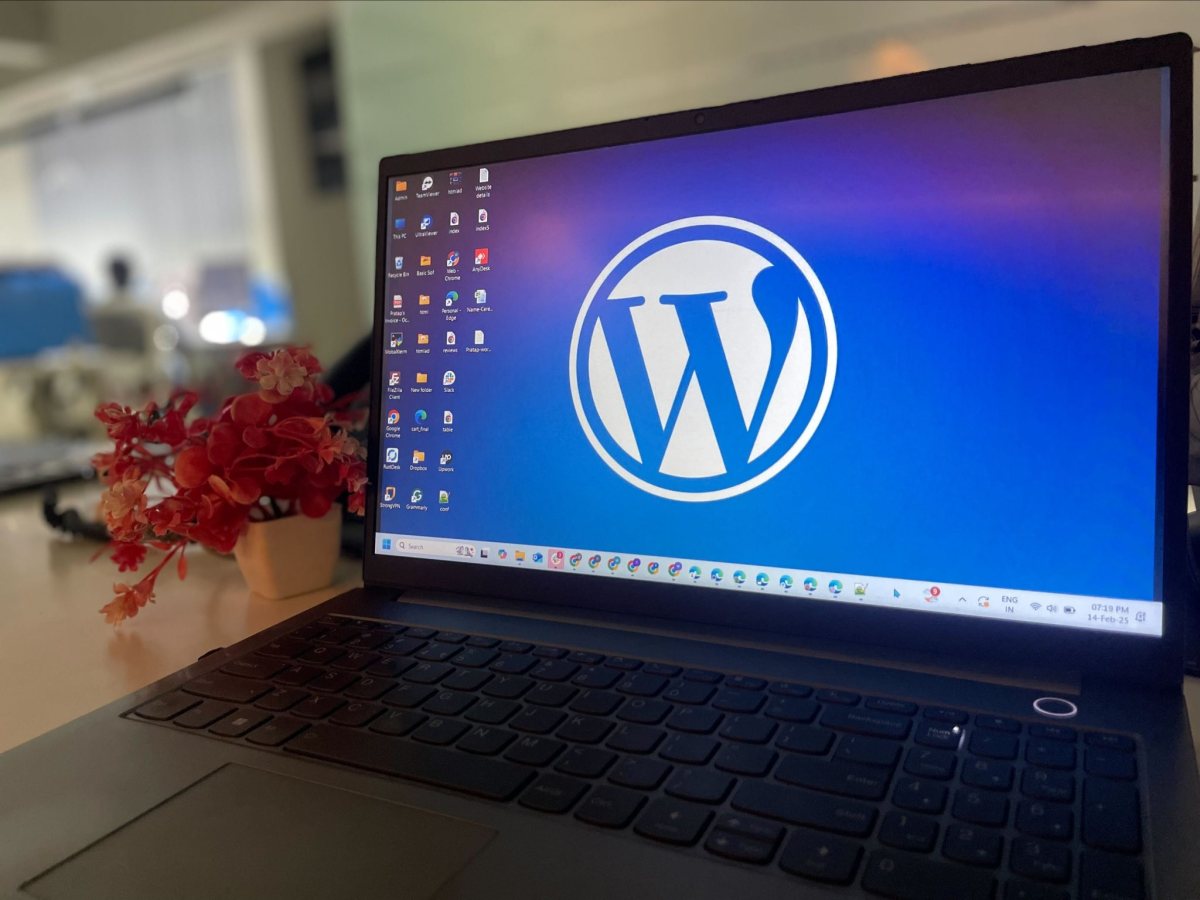
Photo: Shubham Patil, public domain (CC0)
In this guide
Before you start
WordPress is free software that runs on a web server. To install it you need three things, and all three are usually sold together as “web hosting”.
- A domain name, for example yourcompany.eu. It is the address people type.
- Web hosting: space on a server that runs a current version of PHP and a MySQL or MariaDB database. Almost every hosting plan sold today does.
- An SSL certificate, so the address starts with https. Good hosts include one for free and switch it on for you.
You also need about half an hour, the login for your hosting account, and an email address you actually read: WordPress sends password resets and warnings there.
| What | What it is | Where you get it |
|---|---|---|
| Domain name | The address people type, for example yourcompany.eu | A domain registrar, often your hosting company |
| Web hosting | Space on a server that runs PHP and a database | A hosting company |
| SSL certificate | Makes the address start with https | Included by good hosts |
| Admin email | Receives password resets and warnings | A mailbox you read every day |
WordPress.org or WordPress.com?
They are two different things with the same name. WordPress.com is a service that hosts a site for you, with limits on what you can install. WordPress.org is the free software you install on your own hosting, with no such limits. This guide is about the second one, because it is the one where the site is fully yours.
The quick way: your host’s installer
Most hosting companies offer a one-click installer in their control panel. It may be called “WordPress Manager”, “Softaculous”, “Installatron” or simply “Install WordPress”. If your host has one, use it: the result is the same as a manual installation and it takes five minutes.
- Log in to your hosting control panel and open the WordPress installer.
- Choose the domain the site should live on. Leave the “directory” field empty unless you want the site in a sub-folder such as /blog.
- Pick https as the protocol if you are asked.
- Enter a site name. You can change it later.
- Create the administrator account: a user name that is not “admin”, a long password from a password manager, and your email address.
- Choose the language of the site.
- Decline any pre-selected extra plugins or themes the installer offers. You can add what you need later, and fewer is better.
- Press Install and wait for the confirmation.
Then continue with “Right after installing” below.
The manual way, step by step
Use this when your host has no installer, or when you want to understand what actually happens. It is the same on every host.
1. Download WordPress
Go to wordpress.org/download and download the latest version. Unzip the file on your computer. You get a folder named “wordpress”.
2. Create a database
In your hosting control panel, open the database section (often “MySQL Databases”).
- Create a new database and note its name.
- Create a database user with a strong password and note both.
- Give that user all privileges on the new database.
You now have four pieces of information: database name, user name, password, and the database host. The host is “localhost” on most servers; if yours is different, the control panel says so.
3. Upload the files
Connect to your server with an FTP program such as FileZilla or WinSCP, or use the file manager in the control panel. Upload everything inside the “wordpress” folder, not the folder itself, into the web root of your domain. That directory is usually called public_html, htdocs or www.
Uploading takes a few minutes because there are a few thousand small files. If your control panel can unzip files, it is faster to upload the zip and unpack it on the server.
4. Run the installer
Open your domain in a browser. WordPress notices that it has not been set up and starts its installer.
- Choose the language.
- Enter the four database details from step 2. Leave the table prefix as it is, or change “wp_” to something of your own, for example “site7_”.
- WordPress writes its configuration file. If it cannot, it shows you the content: create a file named wp-config.php in the web root, paste the content, save, and continue.
- Enter the site title, an administrator user name that is not “admin”, a long password and your email address.
- Tick “Discourage search engines from indexing this site” for now. You will switch it off when the site is ready.
- Press Install WordPress, then log in at yourdomain.eu/wp-admin.
Right after installing
A fresh installation works, but it is not ready. These ten steps take another fifteen minutes and save trouble for years.
- Check that the address starts with https. Under Settings > General both addresses should begin with https://. If not, switch on the SSL certificate in your hosting panel first, then change them.
- Set permalinks. Under Settings > Permalinks choose “Post name”, so pages get readable addresses instead of numbers.
- Set the time zone, date format and site language under Settings > General.
- Delete what you will not use: the sample post, the sample page, the “Hello Dolly” plugin and the themes you are not using, apart from one default theme as a fallback.
- Create a second user with the Editor role for everyday writing, and use the administrator account only for settings and updates.
- Switch on automatic updates for minor WordPress releases, which is the default, and decide who checks plugin updates every week.
- Set up backups before you add content. A backup that is stored on the same server as the site does not count; it must be kept somewhere else, and you should restore it once to know it works.
- Make sure email arrives. Send yourself a password reset. If nothing comes, the server’s mail is being rejected and you need to send through a real mailbox; your host or your agency can set that up.
- Create the pages the law asks for: a legal notice, a privacy policy, and a cookie notice if the site sets anything beyond the necessary cookies.
- When the site is ready, untick “Discourage search engines” under Settings > Reading, and submit the sitemap at yourdomain.eu/wp-sitemap.xml to the search engines.
If something goes wrong
“Error establishing a database connection”
One of the four database details is wrong. Open wp-config.php and compare the database name, user, password and host with what your control panel shows. A password with special characters that was copied incompletely is the usual cause.
A white page, or a “critical error” message
Usually the PHP version is too old or a required PHP extension is missing. Set PHP to a current version in your hosting panel. If the message persists, your host’s support can read the error log in a minute.
You see a list of files or the host’s placeholder page
The files are in the wrong directory, or an old index.html is still in the web root. Move the WordPress files into the web root and delete the placeholder file.
The browser warns that the site is “not secure”
The SSL certificate is not active yet, or the site address still starts with http. Activate the certificate with your host, then correct both addresses under Settings > General.
The installer cannot write wp-config.php
The web server has no permission to write into the directory. Create the file yourself, as described in step 4 of the manual installation.
What comes next
Installing WordPress is the easy part. What decides whether a site works is everything after it: a design that fits the company, pages people actually read, good loading times, and someone who keeps it updated and backed up. If you would rather hand that over, that is what we do every day.
Questions we hear often
Want this sorted without doing it yourself?
Tell us what you are working on. A person replies within one working day.